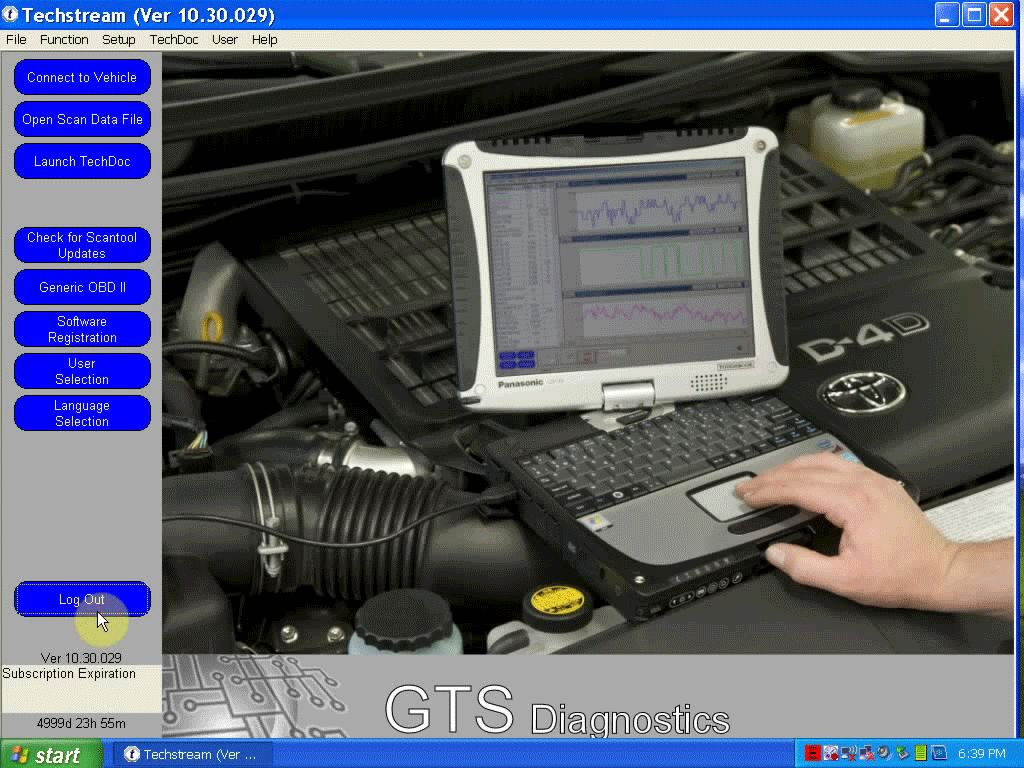
This is
TOYOTA TIS Techstream 10.30.029 update and installation guide.
Toyota TIS Techstream 10.30.029 software download
Operating system requirement:
XP or “XP Mode” in Windows 7 (except win 7 home)
A part of users use VMware and XP Professional.
Languages available:
Chinese, English,French, German, Italy, Japanese, Spanish
Techstream tools:
Step 1- install Toyota Teachstream
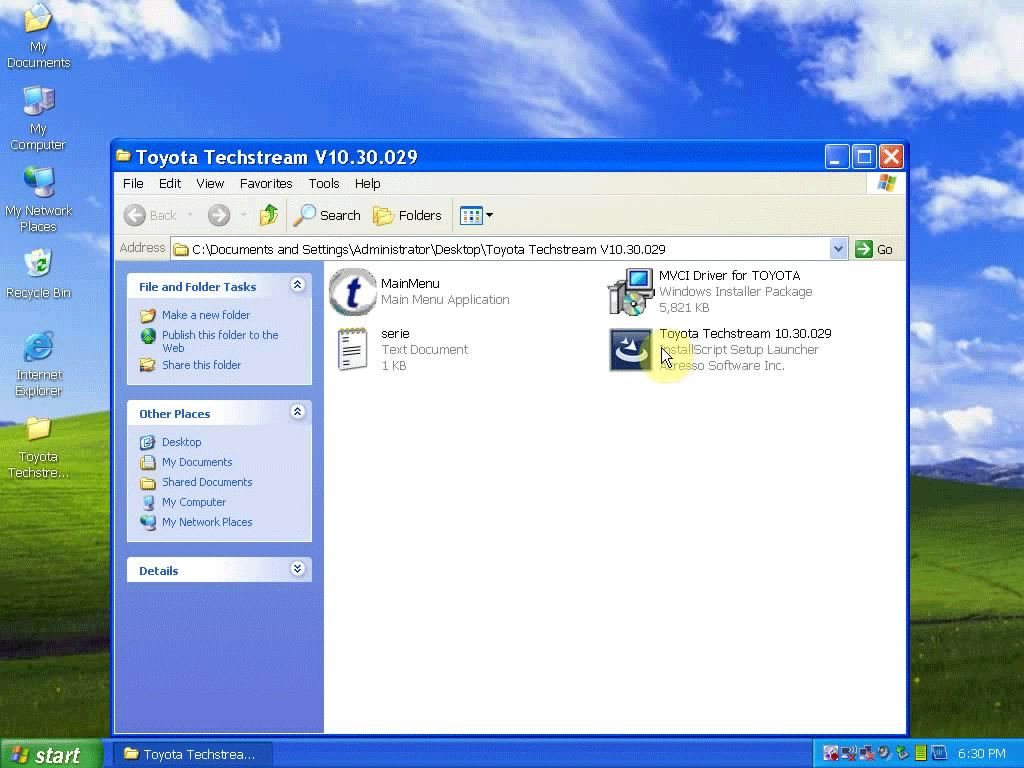
Open “
Toyota Techstream 10.30.029.exe”
Select a steup language to go on
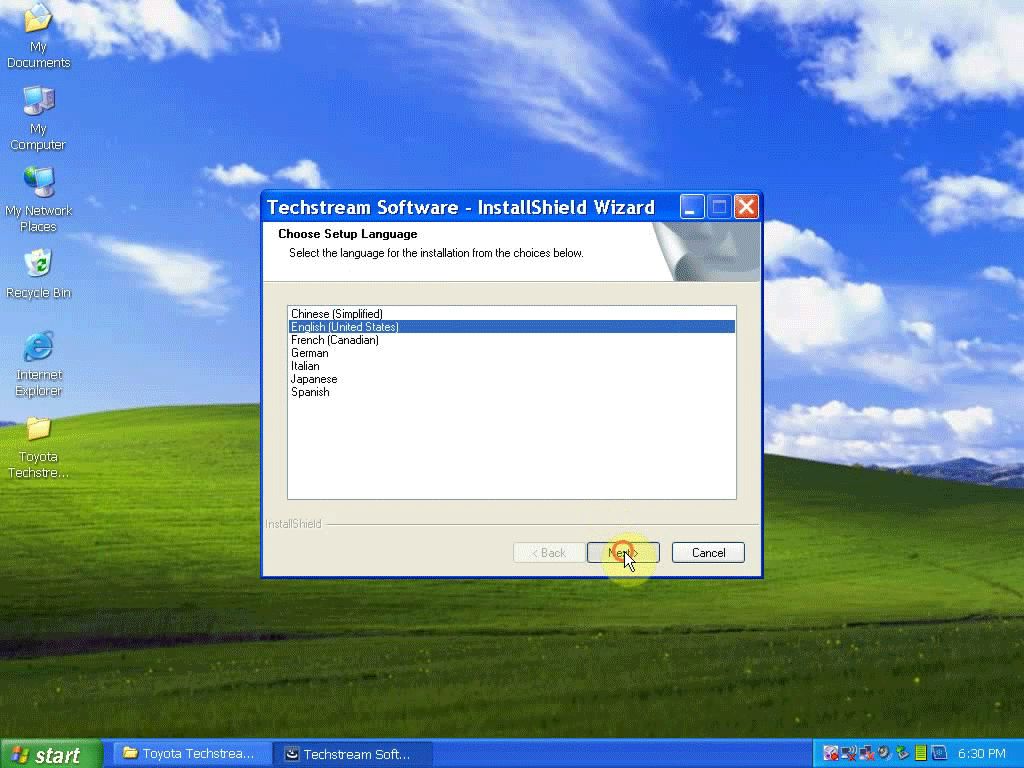
Click
Next
Accept the agreement to go on
Customer information: click
Next
Click
Install to begin installation of
Techstream 10.30.029
Finish installing Techstream
Step 2- install MVCI driver for TIS
Open “
MVCI Driver for Toyota”
Click
Next
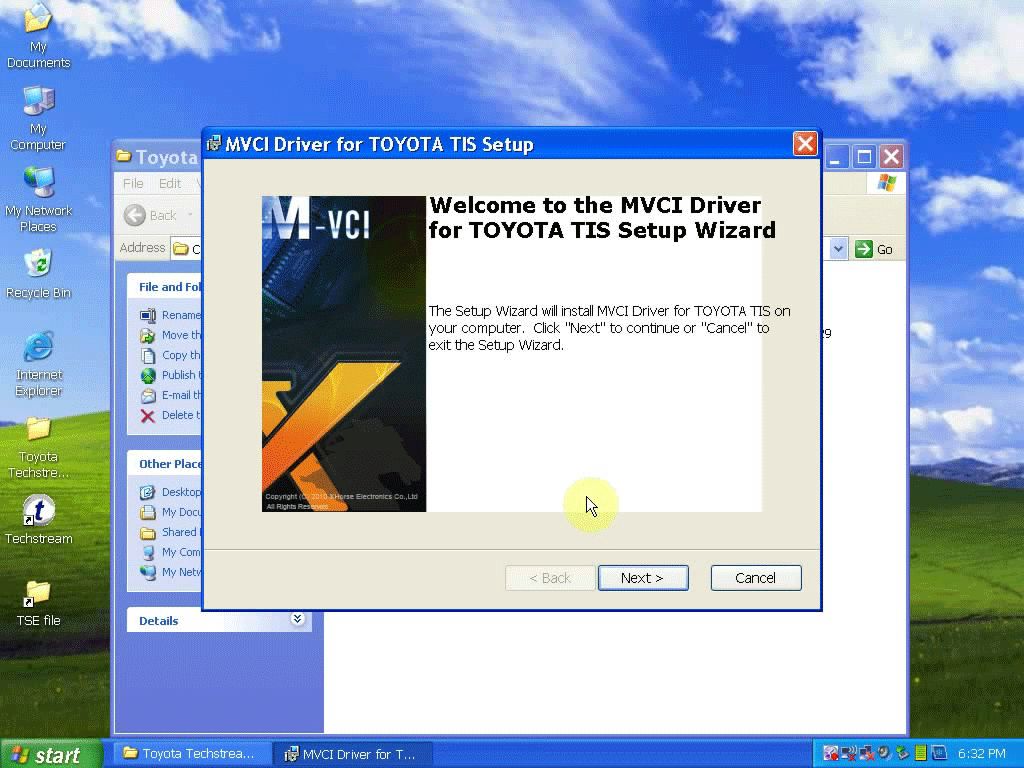
Click
Install to begin installation of the MVCI driver for TIS
Finish installing MVCI driver for TIS
Step 3- paste and replace Main Menu
Copy “
MainMenu” application
Open
Techstream Properties
Click
Find Target
Paste “
MainMenu” application in C:/program files/toyota diagnostics/techstream/bin, confirm file replace
Close bin folder and Techstream Properties
Connect the device (new Mini VCI, mini VCI for Toyota 22 pin, MVCI,Mangoose techstream, VXDIAG NANO) to the vehicle and then install the driver
Open “
Techstream” on Desktop
Click
No
Select
Setup->Techstream configuration

Select an area (here: Europe), click
Next
Select a language (here: English), click
Next
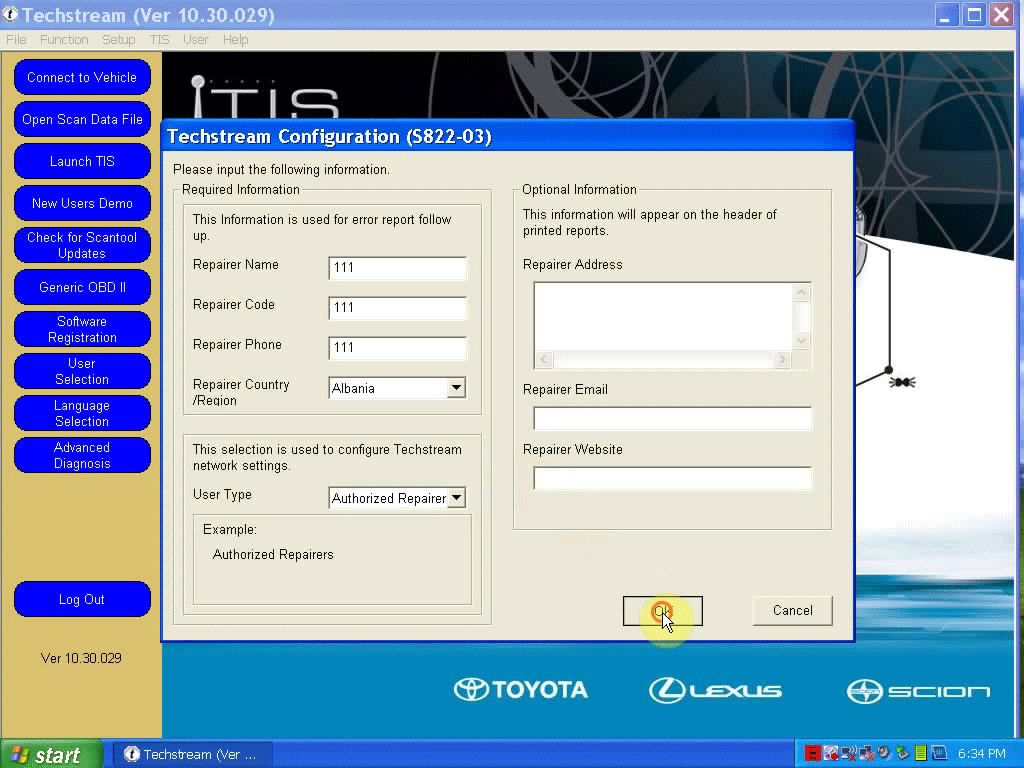
Techstream configuration, click
OK
open Desktop folder “
Toyota Techstream”->
notepad “
serie”
Copy the key
Click
Connect to vehicle in Techstream interface
Paste as the
New Key when register Techstream software, click
OK

Finish Option (here: VIOS, China & 1205-), click
Next

Select
Engine and ETC to continue

Trouble codes display

Select
Data list on the left menu
(Lost communication with vehicle: click
Retry)

Click
Close->Main Menu->Log out (Techstream)